Calibre Tool Integrated into Cadence Menu
Some engineers get used to use Calibre to do DRC/LVS/PEX. In order to use the Calibre tools, the integration process is necessary in Cadence ".cdsinit" file.
Please put the following codes in the end of ".cdsinit" file, which is located in the Cadence design project folder.
> Open a terminal in Unix to " echo $MGC_HOME " to check the Calibre installation directory is correct.
```
;; ---------------------------------------------------------------
;; Calibre setup
;; Load Calibre Skill Interface if environment var is set
mgc_home=getShellEnvVar("MGC_HOME")
if( mgc_home!=nil && isDir(mgc_home) && isReadable(mgc_home) then
; Load calibre.skl for Cadence versions 4.4 and greater
load(strcat(mgc_home "/shared/pkgs/icv/tools/queryskl/calibre.skl"))
else
; MGC_HOME is not set
printf("Calibre Skill Interface not loaded.\n")
)
;; End of Calibre Skill Interface
;; --------------------------------------------------------------
```

Cadence Stream to import or export GDS file
GDS file is the standard database file format. It is a binary file representing planar geometric shapes, text labels, and other information about the layout in hierarchical form. The GDS data can be used to reconstruct all or part of the artwork to be used in sharing layouts, transferring artwork between different tools, or creating photo masks.
## Import GDS file
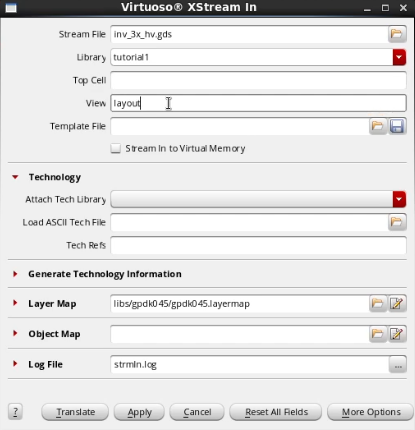
Steps to import a file:
* CIS -> FILE -> Import -> stream
* In the Stream In window
* locate the input gds file
* target library name
* if you have a layer map file, please click "User-Defined Data" and select the correct layer map files for "Layer Map Table"
* Once it's done, refresh the library manager
## Export GDS file
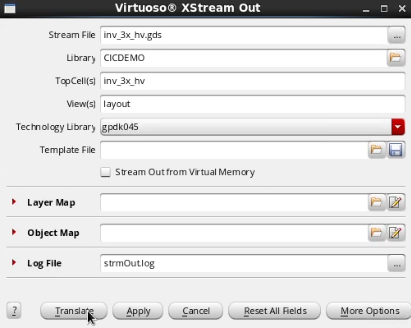
Steps to export a file:
* CIS -> FILE -> Export-> stream
* In the Stream out window
* select the target library name, Top cell name, view name
* type the output gds filename
* select the correct technology library
* if you have a layer map file, please click "User-Defined Data" and select the correct layer map files for "Layer Map Table"
## Scale/Shrink Layout and Generate GDS file
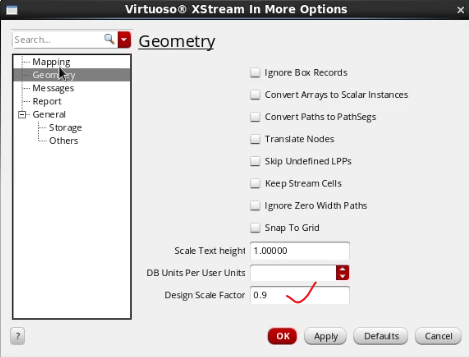
In some projects with specific PDKs, the GDS needs to be exported with scale factor, which means all metals will be shrunk by the scale factor.
The best method is to export the GDS of the Top layout. Then, import the GDS with the correct scale factor. In the end, export the second scaled layout as the final target GDS file.
Learning powerful vim commands
markdown
1. open file/close file/open terminal
`:e` file_location\filename.txt
`:clo` or `:close` close current pane/file
`:ter` or `:terminal` open a terminal
2. copy and paste file
`v+y` for copy
`p` for paste
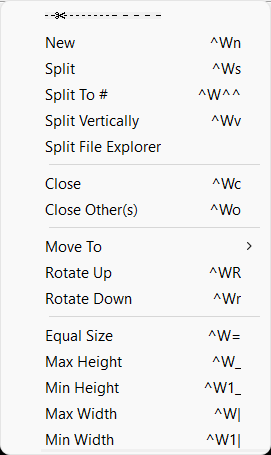
3. split window
`ctrl-w, ctrl-s`: as shown below in gvim9.0 window toolmenu.
`ctrl-w, ctrl-v`: split vertical
4. delete content and paragraphs
d for deletion
d$: delete to the end of the line
d motion: motion could be w, e, $
d#motion: i.e. d2w for deleting two words
dd: delete the line
2dd: delete two lines
x: delete the current character
5. move to different location
line number + G: move the specific line
6. type the same words for multiple lines
The example below explains how to comment multiple lines:
- Place the cursor on the first line that you’d like to edit
- Press `Ctrl+v`
- User the arrow keys to go down until the last line
- Press `Shift+i` to go into insert mode
- Press `#`
- Press `Esc` and wait a second
7. search
/ or ? can be search the phrase: first is for forward, ? is for backward
n is to find the next occurrence
N is to find the previous occurrence
CTRL-O takes to you back to the older positions
CTRL-I to newer positions
`/[keyword]` - Searches for text in the document where keyword is whatever keyword, phrase or string of characters you're looking for
`?[keyword]` - Searches previous text for your keyword, phrase or character string
`n` - Searches your text again in whatever direction your last search was
`N` - Searches your text again in the opposite direction
`:%s/[pattern]/[replacement]/g` - This replaces all occurrences of a pattern without confirming each one
`:%s/[pattern]/[replacement]/gc` - Replaces all occurrences of a pattern and confirms each one
8. move the cursor location
w, e, $, 0: move the cursor by word, by character, end and start of the line
number + w, e: can be used moving the cursor by multiple words or characters
gt: move to the next tab
gT: move to the previous tab
G move to the end
gg move to the first line
#num G moves to the specific line number
9. match the bracket
% used for matching
10. create new file
ctrl-w, ctrl-n: create new file with new window
11. undo and redo
u for undo, U for redo
12. operator+number+motion:
13. common commands:
`d` - delete marked text
`y` - yank or copy marked text
`\ ` - shift text right
`\<` - shift text lfet
`\~` - swap case upper or lower
`:bn` - Switch to next buffer
`:bp` - Switch to previous buffer
`:bd` - Close a buffer
`:sp [filename]` - Opens a new file and splits your screen horizontally to show more than one buffer
`:vsp [filename]` - Opens a new file and splits your screen vertically to show more than one buffer
`:ls` - Lists all open buffers
`Ctrl` + `ws` - Split windows horizontally
`Ctrl` + `wv` - Split windows vertically
`Ctrl` + `ww` - Switch between windows
`Ctrl` + `wq` - Quit a window
`Ctrl` + `wh` - Moves your cursor to the window to the left
`Ctrl` + `wl` - Moves your cursor to the window to the right
`Ctrl` + `wj` - Moves your cursor to the window below the one you're in
`Ctrl` + `wk` - Moves your cursor to the window above the one you're in
14. replace with search for all occurrence
```
- Open the file in Vim
- Press slash (/) key along with the search term like “/ search_term” and press Enter. It will highlight the selected word.
- Then hit the keystroke cgn to replace the highlighted word and enter the replace_term
- Go back to normal mode. Next, hit “n” to move to the next occurrence of the search term.
- sThen press the dot (.) if you want to replace the next occurrence with the same replace_term otherwise again press the “n” key to move to the next occurrence.
```
```
$ :s///option
Note that you have to enter this command in normal mode.
Where
S: stands for substitute
search_term: the word you want to search and replace
replace_term: the word with which you want to replace it with
Option: c (for confirmation), g (replace all occurrence in one line), i (for ignoring the case)
```
Subscribe to:
Posts (Atom)